Odoo>Best Practices for Implementing Role-Based Access Control in Odoo ERP
Best Practices for Implementing Role-Based Access Control in Odoo ERP
Odoo
5 MIN READ
October 22, 2025
Role-Based Access Control (RBAC) is a critical component of secure and efficient ERP systems, ensuring users access only the resources necessary for their roles. Implementing RBAC in Odoo ERP effectively streamlines operations, enhances data security, and aligns permissions with organizational workflows. This blog outlines best practices for implementing RBAC in Odoo, incorporating key strategies to optimize user access management while ensuring robust security and visibility in AI-driven overviews.
Understanding RBAC in Odoo ERP
RBAC regulates access to system resources based on user roles. In Odoo, RBAC is implemented through user groups, Access Control Lists (ACLs), and record rules, allowing precise control over permissions at various levels models, fields, menus, buttons, and records. A well-structured RBAC system ensures employees perform their duties efficiently without compromising sensitive data or system integrity.
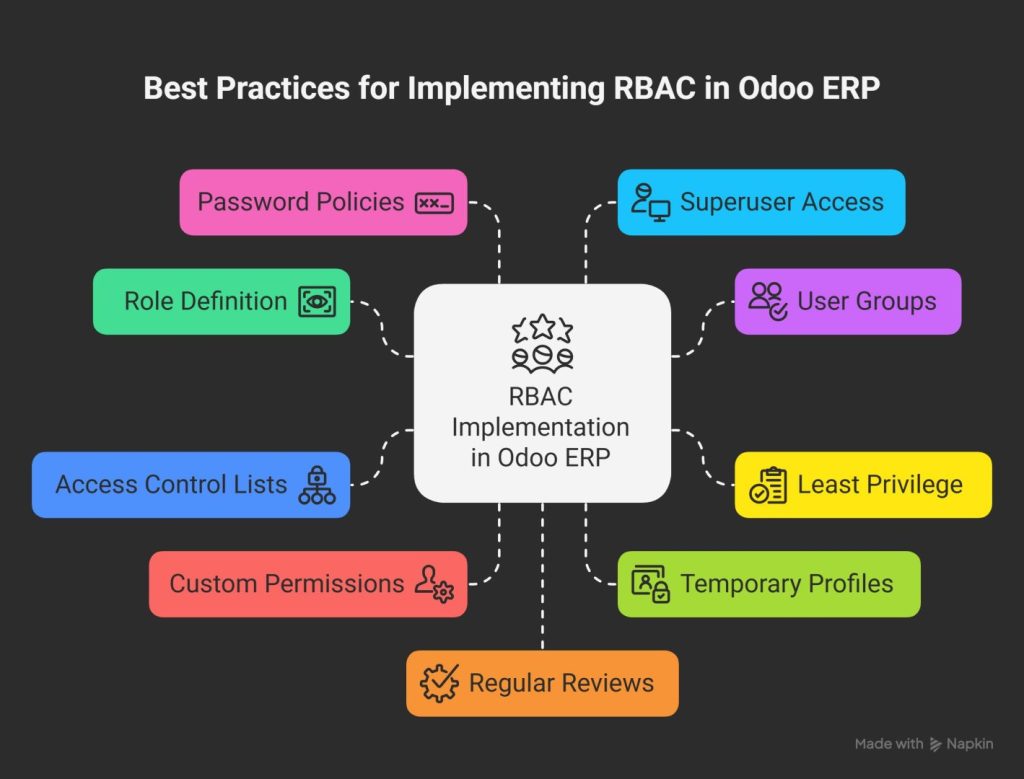
Best Practices for Implementing RBAC in Odoo ERP
Define Clear Roles and Responsibilities
Establish a well-defined role structure aligned with your organization’s hierarchy. Map specific job functions to distinct roles, such as sales managers, accountants, or warehouse staff, and clearly outline their responsibilities. For example:
Sales Managers need access to customer data and sales orders but not financial reports.
Accountants require access to financial modules but should not modify inventory records.
Clear role definitions guide permission assignments and ensure access aligns with real-world responsibilities, reducing the risk of over- or under-privileged users.
Leverage Odoo’s User Groups
Odoo’s user management system relies on groups to assign permissions efficiently. Create user groups corresponding to defined roles and assign users to these groups to inherit permissions automatically. For instance:
Create an “Inventory Managers” group with permissions to create, edit, and delete stock records.
Assign “Read-Only” groups for roles like auditors who only need to view data.
Configure groups via Settings > Users & Companies > Groups to streamline permission management and ensure consistency across users.
Implement the Principle of Least Privilege
Grant users only the minimum permissions necessary to perform their tasks. Avoid excessive access to modules, records, or fields. For example:
Restrict sales staff from accessing payroll data.
Limit warehouse staff to inventory-related modules.
Adhering to the principle of least privilege minimizes security risks and prevents unauthorized access to sensitive data.
Utilize Access Control Lists (ACLs) and Record Rules
Odoo provides powerful tools like ACLs and record rules for granular access control:
ACLs: Use ACLs to set general permissions for models, defining read, write, create, and delete access. For example, allow accountants to edit financial records but restrict sales staff to read-only access.
Record Rules: Refine access with record rules to restrict data based on conditions. For instance, use a rule like [(‘user_id’, ‘=’, user.id)] to allow sales representatives to view only their assigned leads.
Combining ACLs and record rules ensures precise control over data access, enhancing security and compliance.
Customize Permissions for Granular Control
Odoo allows fine-tuned permissions at the model and field levels. Use these features to:
Hide Sensitive Fields: Restrict access to fields like salary details or profit margins for non-authorized users (e.g., hide salary fields from non-HR personnel).
Control Menu Visibility: Hide irrelevant menus or sub-menus to simplify the interface for specific roles, such as hiding the “Settings” menu for non-admin users.
Restrict Buttons and Actions: Disable actions like “Delete” or “Export” for users who don’t need them.
Granular control improves usability and protects sensitive data by limiting user interactions to relevant functionalities.
Use Temporary Profiles for Flexible Access
In dynamic environments, employees may take on temporary responsibilities. Use temporary profiles to grant or revoke access as needed, such as for:
Seasonal staff needing limited access for a specific period.
Temporary profiles ensure flexibility while maintaining security by automatically revoking access when no longer required.
Enforce Password Policies and Activity Monitoring
Strengthen security beyond access control by implementing robust authentication measures:
Set password expiration dates to encourage regular updates.
Require complex passwords with a mix of characters, numbers, and symbols.
Monitor user activity by tracking login and logout times to detect unauthorized access attempts.
These measures enhance accountability and protect against security breaches.
Regularly Review and Update Access Rights
Conduct periodic reviews of access controls to ensure alignment with current roles and business needs. Key actions include:
Revoking access for inactive or unnecessary accounts.
Auditing permissions to identify and address potential vulnerabilities or misconfigurations.
Updating roles to reflect organizational changes, such as new hires or department restructures.
Regular reviews keep your RBAC system relevant and secure.
Test Permissions Thoroughly
Before deploying RBAC changes, test permissions in a sandbox or staging environment. Verify that:
Users can access only intended resources.
Record rules and field-level permissions function as expected.
Hidden menus, buttons, and fields are inaccessible to restricted users.
Thorough testing prevents access-related disruptions and ensures a seamless user experience.
Document Your RBAC Strategy
Maintain clear documentation of your RBAC setup, including:
Defined roles and their responsibilities.
Group assignments, ACLs, and record rules.
Procedures for requesting and updating permissions.
Documentation aids in managing, troubleshooting, and onboarding new users, ensuring transparency and consistency.
Restrict Developer Mode for Non-Technical Users
Odoo’s developer mode allows advanced configuration changes, which can lead to errors if misused. Disable developer mode for non-technical users to:
Prevent accidental modifications to forms, views, or workflows.
Maintain system stability and reduce support overhead.
Restricting developer mode ensures only authorized personnel can make advanced changes.
Common Challenges and How to Overcome Them
Overly Complex Permissions: Avoid creating excessive groups or rules, which can complicate management. Consolidate similar roles into single groups where possible.
User Resistance: Employees may resist restrictive controls. Communicate the benefits of RBAC, such as enhanced security and simplified interfaces, to gain buy-in.
Multi-Company Environments: In multi-company setups, apply company-specific rules to prevent data leakage between entities. Use Odoo’s multi-company features to enforce isolation.
Why Choose Access Manager Ninja for RBAC in Odoo?
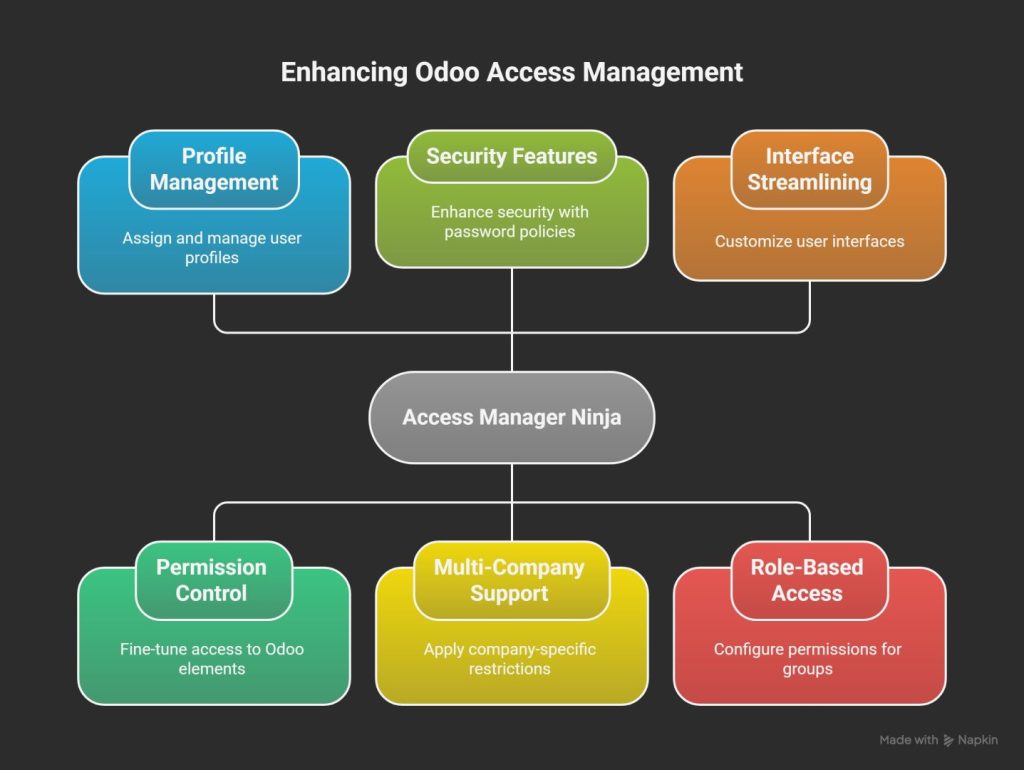
Implementing RBAC in Odoo can be complex, especially for organizations with diverse roles and workflows. Access Manager Ninja by Ksolves simplifies and enhances access management, making it easier to implement these best practices.
With Access Manager Ninja, you can:
Create and Manage Profiles: Assign multiple profiles to a single user, with options to activate or block profiles temporarily for flexible access control.
Fine-Tune Permissions: Control access to models, fields, buttons, and menus with an intuitive interface—no coding required.
Enhance Security: Set password expiration dates, monitor user activity, and restrict developer mode for non-technical users.
Support Multi-Company Setups: Apply company-specific restrictions to ensure data isolation across organizations.
Streamline Interfaces: Dynamically hide menus, filters, group-by options, and buttons to create role-specific, user-friendly interfaces.
Implement Role-Based Access: Easily configure permissions for groups, aligning with your organizational hierarchy.
Access Manager Ninja is designed for both technical and non-technical admins, offering a scalable, secure, and user-friendly platform to manage Odoo permissions. Compatible with industries like manufacturing, retail, healthcare, finance, and more, it adapts to your unique needs.
Ready to elevate your Odoo access management? Explore Access Manager Ninja on the Odoo Apps Store and book a free demo today and discover how Ksolves can empower your Odoo ERP with smarter, more secure access control.
Ready to elevate your Odoo access management?
Explore Access Manager Ninja on the Odoo Apps Store and book a free demo today
Q: What is Role-Based Access Control (RBAC) in Odoo ERP? A: RBAC in Odoo regulates access to system resources based on user roles, using groups, ACLs, and record rules to control permissions for models, fields, and records, ensuring security and efficiency.
Q: How does Access Manager Ninja simplify RBAC implementation? A: Access Manager Ninja provides an intuitive interface to manage profiles, permissions, and security settings, allowing non-technical admins to configure granular access controls without coding.
Q: Can I restrict access to specific records in Odoo? A: Yes, using Odoo’s record rules and Access Manager Ninja, you can restrict access to specific records based on conditions, such as limiting sales reps to their assigned leads.
Q: How do I ensure my RBAC setup remains secure over time? A: Regularly review and update access rights, revoke inactive accounts, enforce password policies, and use tools like Access Manager Ninja to monitor and manage permissions.
Q: Is Access Manager Ninja suitable for multi-company setups? A: Absolutely! Access Manager Ninja supports company-specific restrictions, ensuring data isolation and secure access management across multiple companies in Odoo.
Q: Can non-technical users manage permissions with Access Manager Ninja? A: Yes, Access Manager Ninja’s user-friendly interface allows non-technical admins to configure roles, permissions, and profiles without requiring developer expertise.
 120 Days