pic
Multi-Level Approval Engine
120 Days
Free Support
Free
Lifetime Update
Free
Installation
Multi-Level Approval Engine

Multi-Level Approval Engine


Supported Versions

All the compatible versions

99.00 € 99.0 EUR

99.00 €
Installation: Free
Support Period for 4 Months: Free

Live Demo
120 Days
Free Support
Free
Lifetime Update
Free
Installation
Odoo 19.0 · Community Multi-level approval workflows for any document, any button — zero dependency on Sales, Purchase, Accounting or Expenses.
Multi-Level Approval Engine logo Multi-Level Approval Engine Multi-Level Approval Workflows
[email protected]
Multi-Level Approval Engine icon

Multi-Level Approval Engine

Multi-Level Approval Workflows, Your Way

Put a real, unbypassable checkpoint in front of any action in Odoo — confirming a quotation, posting an invoice, approving an expense, or anything your business decides needs sign-off. Configure who approves, in what order, and under what conditions — entirely on Odoo Community, with zero Enterprise dependency and zero code required to get started.

Depends on base + mail only 4 routing modes Gate any button, no code Immutable audit trail
Powered by Ksolves Odoo Gold Partner CMMI Level 3
Odoo Community, Enterprise & odoo.sh
What's inside

Key Highlights

Everything you need to put real, enforced sign-off in front of any action — and to keep it moving once it is there.

01

Zero Enterprise Dependency

Runs on Odoo Community. Depends on base and mail only — no Sales, Purchase or Accounting required.

02

Gate Any Button, No Code

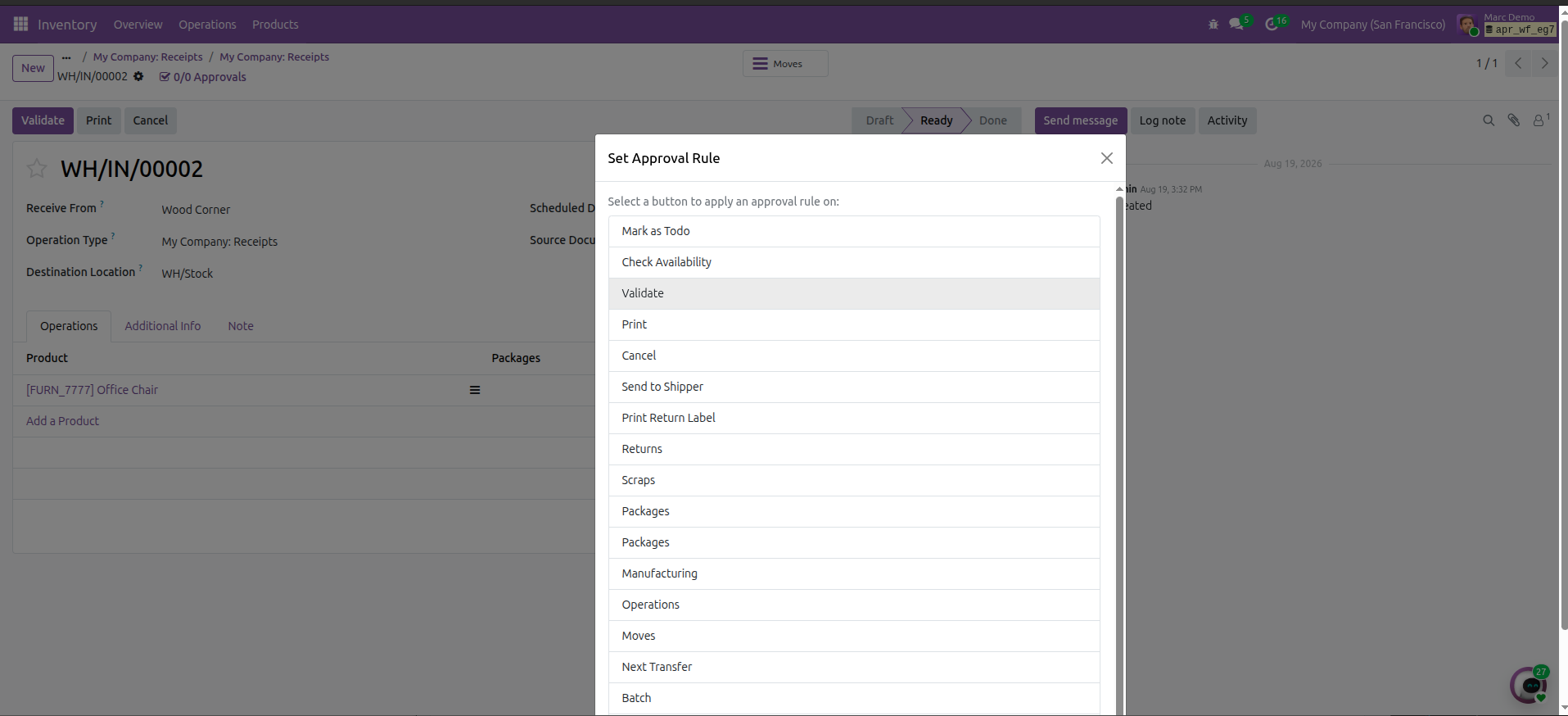
Attach a rule to any button on any model straight from the screen it lives on — picked by its real label, not a Python name.

03

Four Routing Modes

Sequential, Parallel-Any, Parallel-All and true committee Quorum (any N of M) — mixed freely across levels of one rule.

04

Approvers Resolved Live

By named user, by security group, or automatically from the requester's own manager — so staff changes need no rule edit.

05

Conditions & Thresholds

Stop only what matters: filter by customer, region or category, or trigger above an amount on any monetary field.

06

Auto-Approve Floor

Small values clear with no human step and are still fully recorded — approvers only see what is worth their time.

07

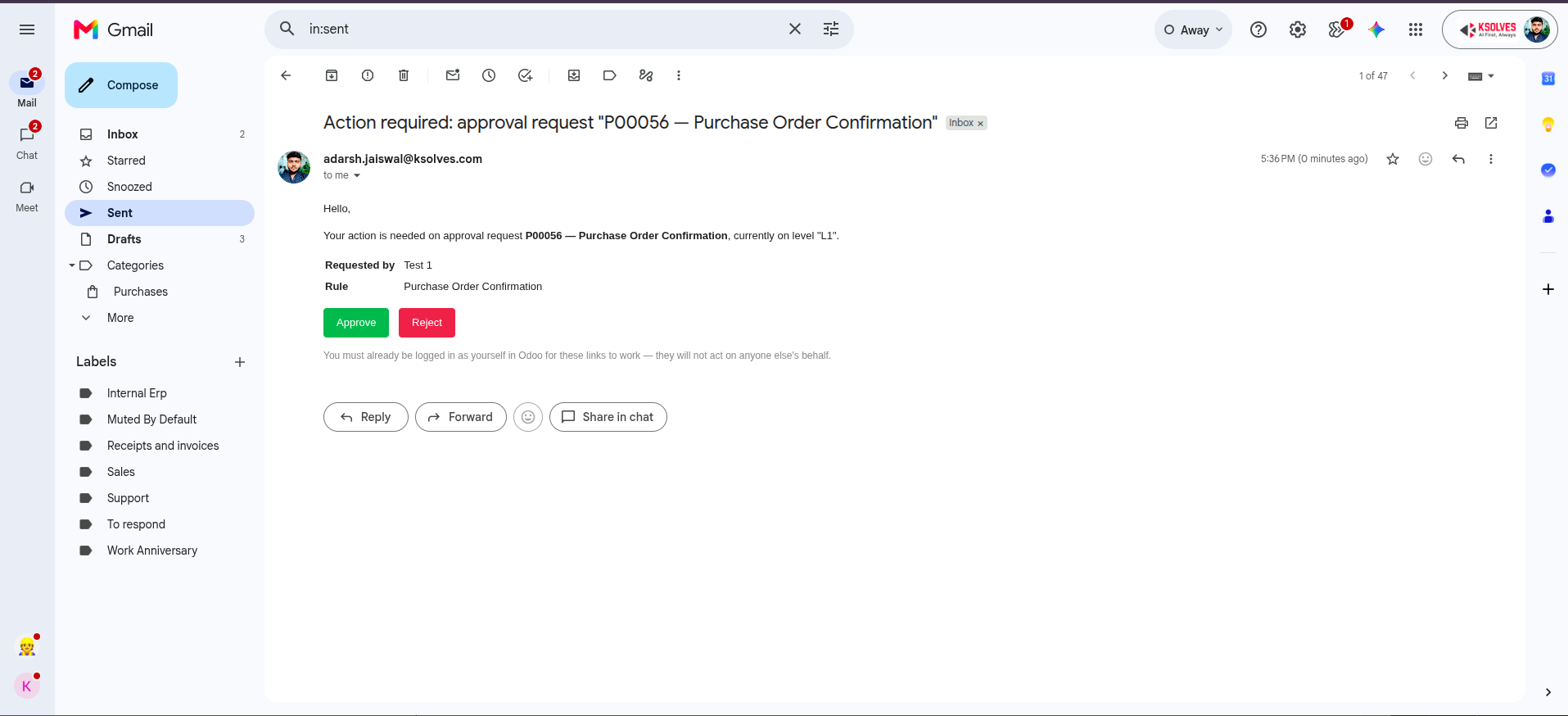
Approve From Your Inbox

One-click Approve / Reject in the notification email, with identical validation — the shortcut skips nothing.

08

Deadlines & Escalation

Per-level SLA with automatic reminders at 50% and 90%, then notify a senior, pull in a backup, or flag it Overdue.

09

"Time to Rot"

A second, harsher stage for requests that stall even after escalating — every approver gets a daily nudge until it is decided.

10

Delegation & Cover

Time-boxed hand-over for leave, recorded with both identities. The original approver never loses their own right to act.

11

Simulate Before Go-Live

Dry-run a rule to see whether it matches and exactly who would be asked — nothing created, nobody notified.

12

Audit-Proof By Default

Every decision permanent and identity-attributed. No self-approval, ever. Cannot be edited or deleted — by anyone.

And also Unified approvals dashboard Break-glass emergency approval Cycle-time & SLA analytics Approver bottleneck report Attachment-required levels Exclusive approval Withdraw & resubmit Per-company scoping Rule versioning Retention archiving Optional chat notifications Bulk approve
Rule builder icon

No-Code Rule Builder

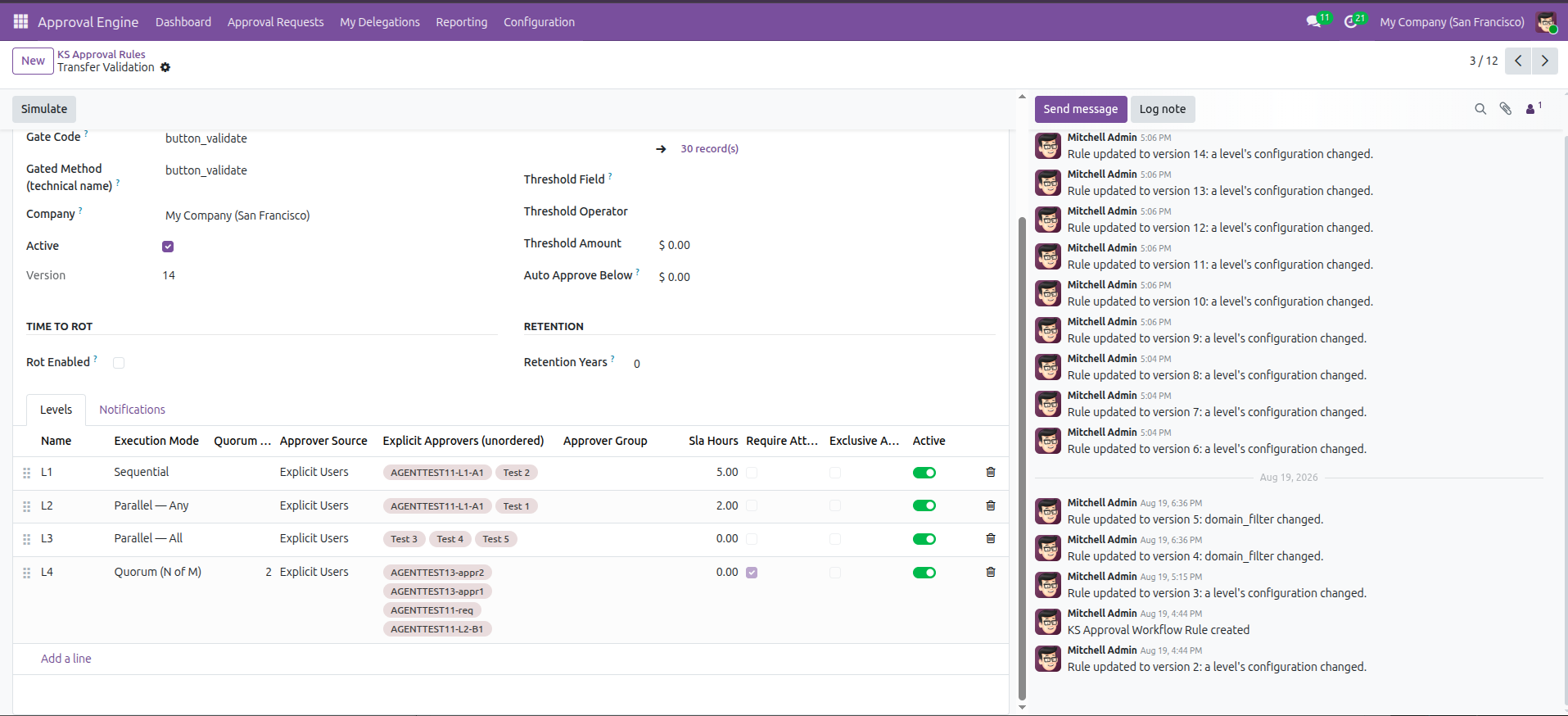
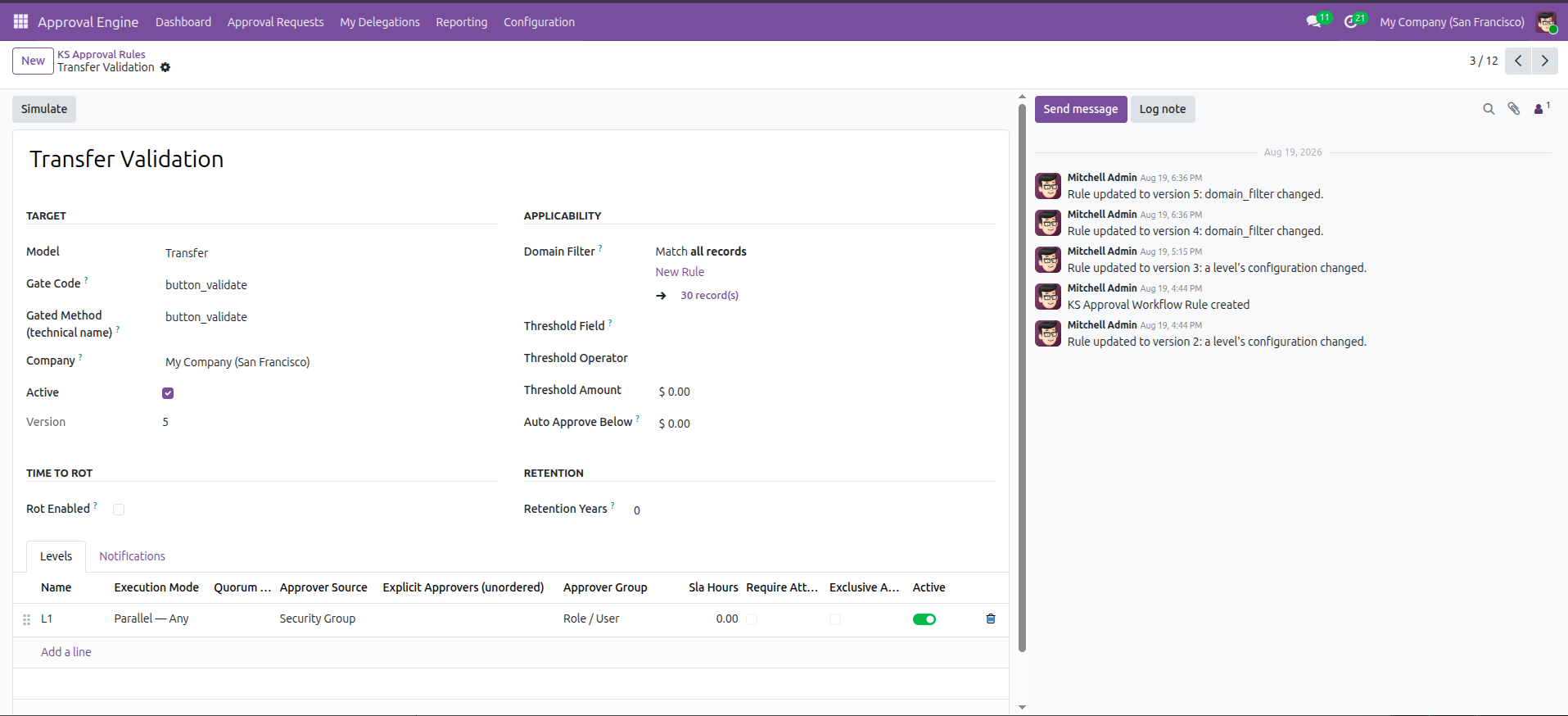
Configure exactly what needs sign-off, and under what conditions, entirely from ordinary Odoo screens — no developer required for day-to-day rule changes.

  • Pick the model and the exact on-screen button label — "Confirm" or "Post," not a technical name
  • Limit by condition (customer, region, category) or by an amount threshold
  • Auto-approve floor for trivial cases — still logged, never a silent gap
  • Simulate a rule before it ever notifies anyone — nothing created, nobody pinged
No-code approval rule builder
Routing icon

Flexible Multi-Level Routing

Build a chain that matches how your organisation actually decides — not how a form dictates it should.

  • Sequential, Parallel-Any, Parallel-All, and true committee-style Quorum (any N of M)
  • Approvers by name, by security group, or automatically via the requester's own manager
  • Exclusive approval stops one person clearing two levels of the same request
  • Attachment-required levels block approval until a document is actually attached
Multi-level routing configuration
Dashboard icon

One Dashboard For Every Approval

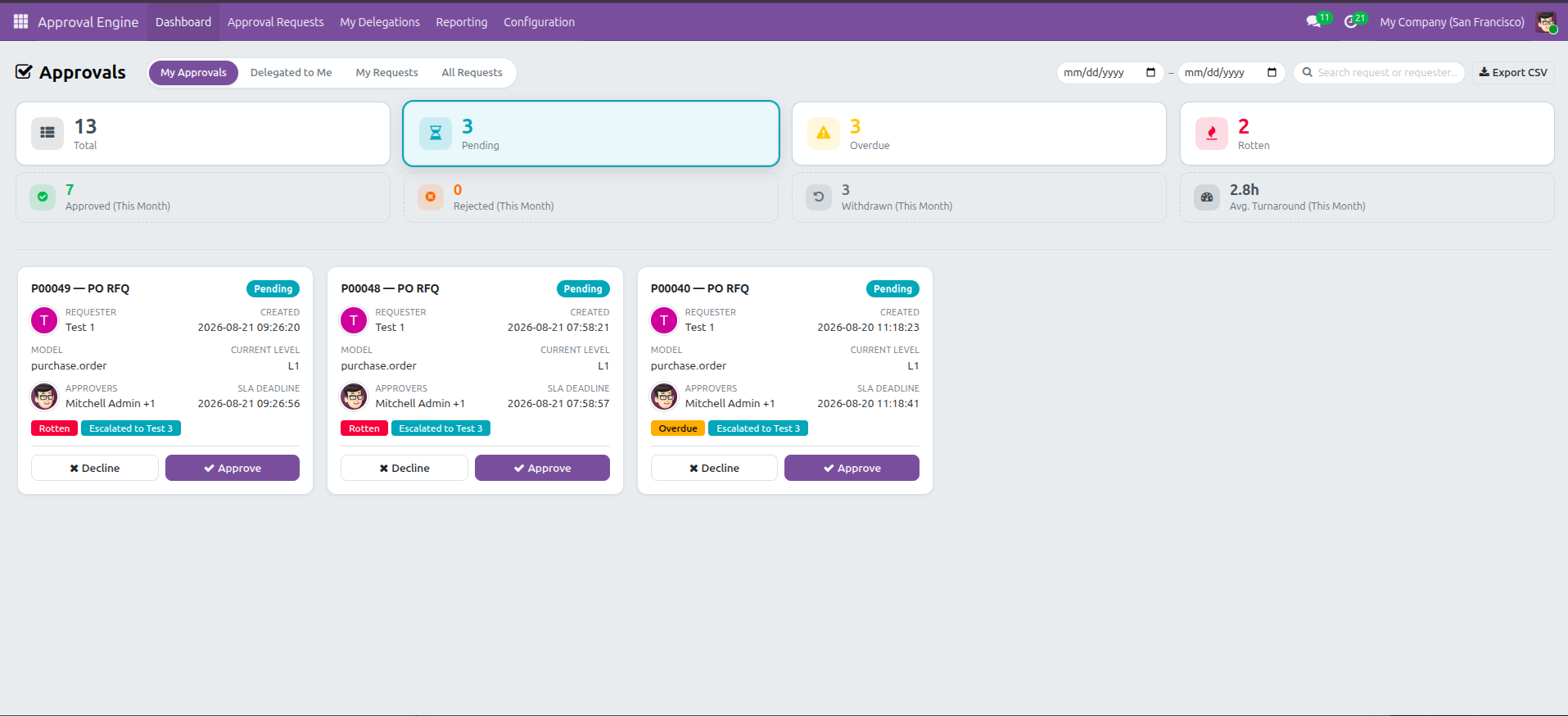
Everyone's pending approvals and submitted requests, across every document type, without hunting through each app separately.

  • My Approvals, Delegated to Me, My Requests, and (admins only) All Requests
  • Counters double as filters: Total, Pending, Overdue, Rotten, Approved, Rejected
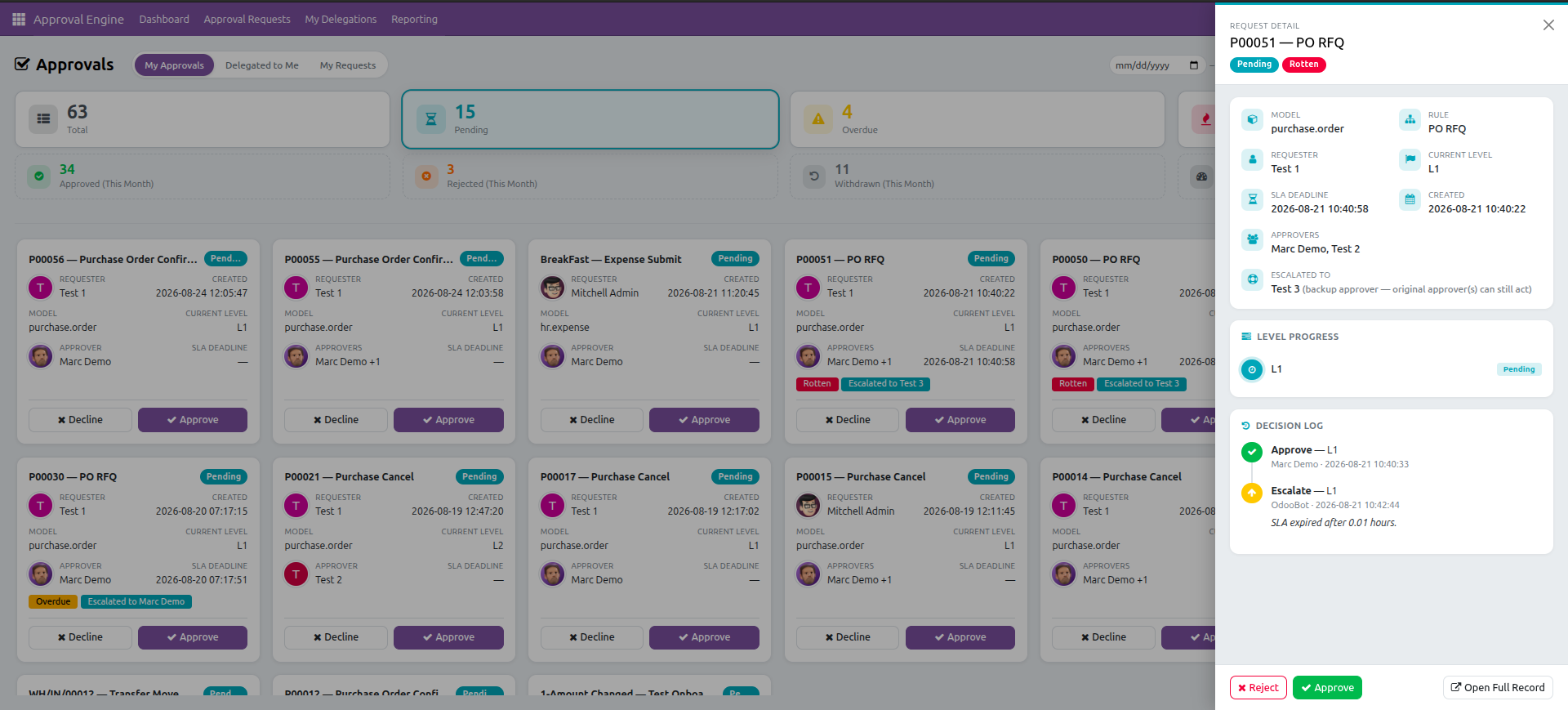
  • Approve or reject straight from a card, or open the full detail drawer
  • Export the current view to a spreadsheet whenever you need it offline
Approval dashboard with four tabs
Request detail drawer with level progress and decision log
Time to Rot icon

Keeping Things Moving

Cover for absence, deadlines that actually matter, and a mechanism that makes sure nothing quietly sits forgotten in a queue.

  • Time-boxed delegation — the original approver never loses their own right to act
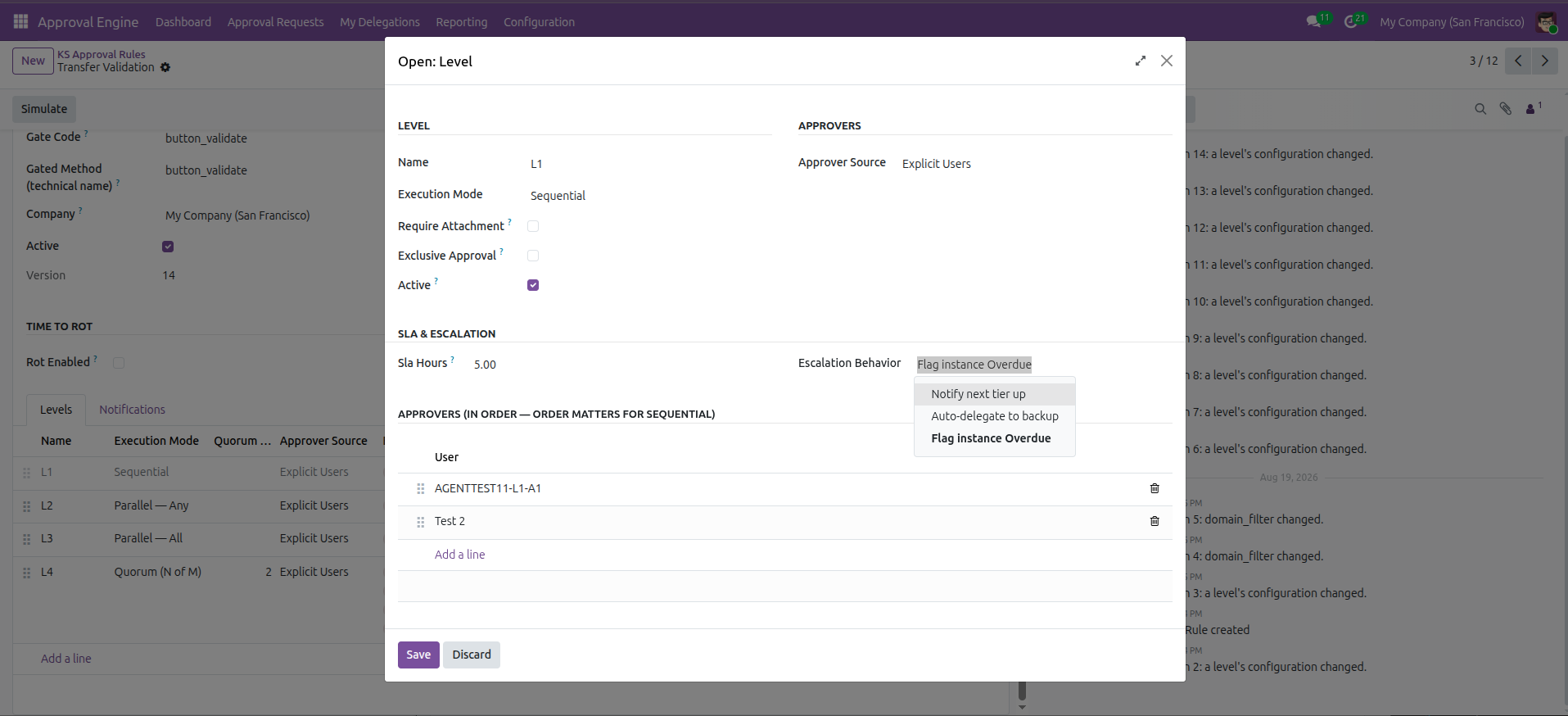
  • Per-level deadlines: notify someone senior, bring in a backup, or flag Overdue
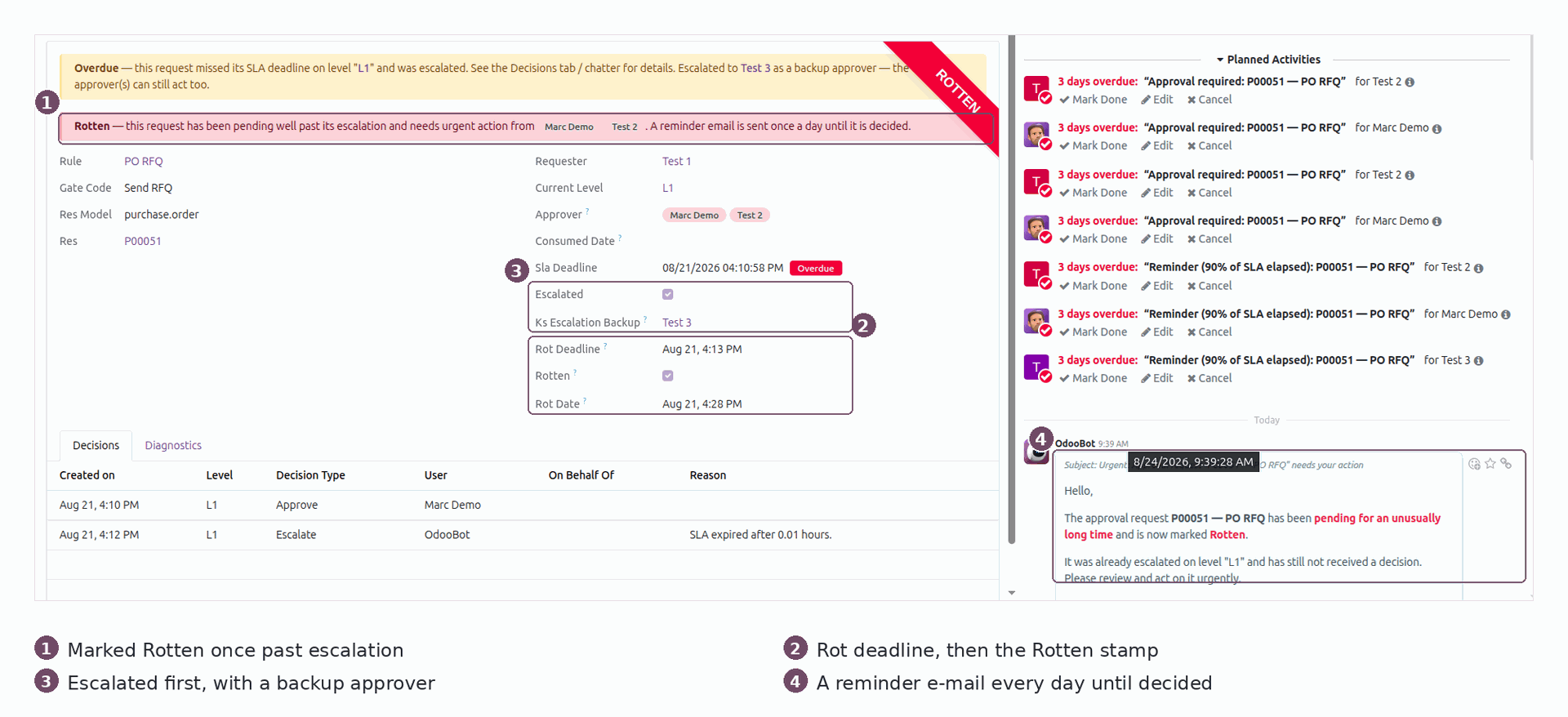
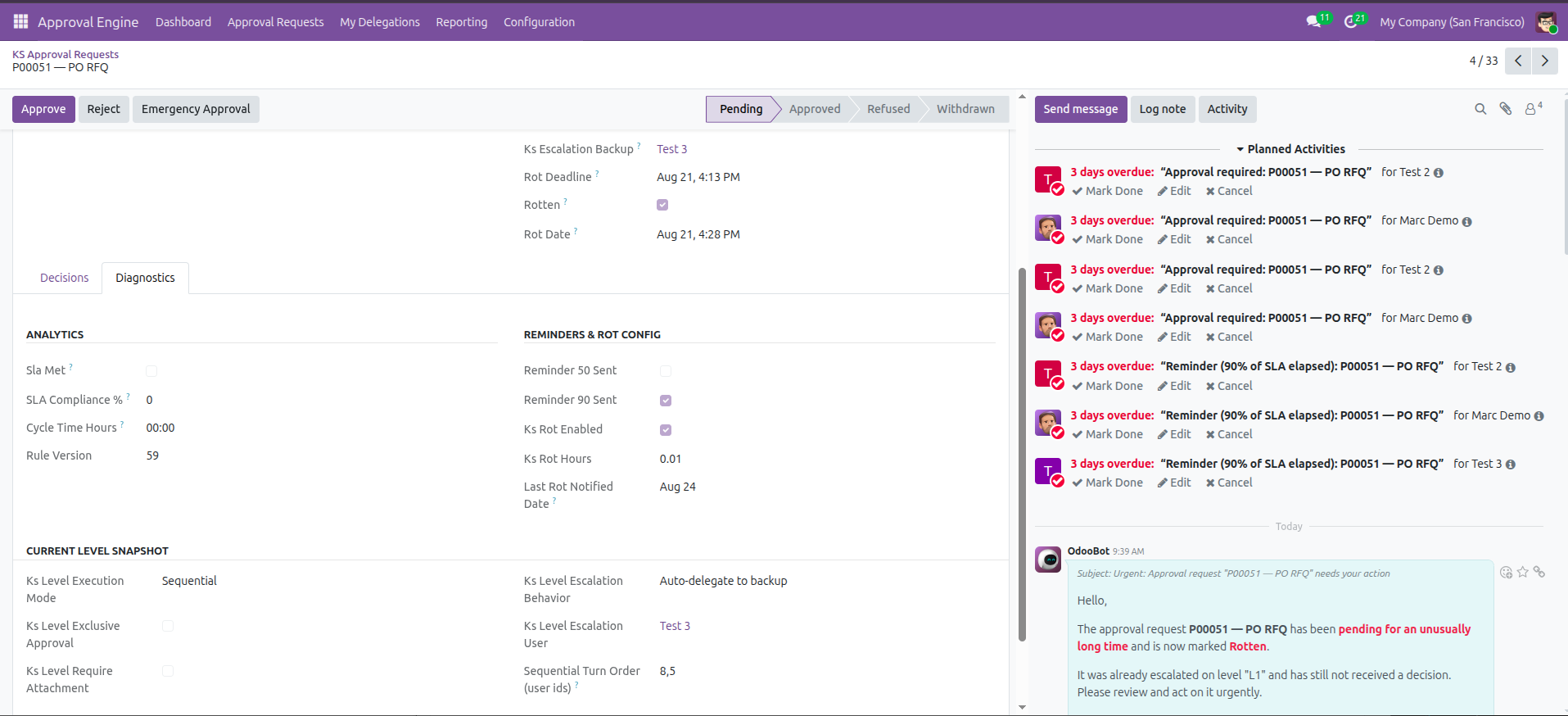
  • "Time to Rot": a second, harsher stage that emails every approver daily until it's decided
  • Automatic reminders at 50% and 90% of the deadline, before anything escalates
SLA, escalation and Time to Rot
Time to Rot — a request marked Rotten after escalation, with its daily reminder
Approve from anywhere icon

Approve From Anywhere

Act on a request from wherever you already are — the Odoo dashboard, an email, or an optional chat channel — with no shortcuts baked in.

  • One-click Approve / Reject straight from the notification email
  • Identical validation as the in-app path — the email shortcut skips nothing
  • Rejection always requires a typed reason, even from an email link
  • Optional team-chat notification, off by default, on only where you want it
One-click email approve and reject
Gate any button icon

Gate Any Button — No Code Required

Turn on approvals for a document that was never specially prepared for it — safely, and without a development project.

  • Attach a rule directly to a button — the system wires it at runtime
  • Safety deny-list protects create/write/delete from ever being gated by accident
  • Developer Mode tool lists a form's real on-screen button labels, not technical names
  • A one-line decorator is also available for developers who prefer it declared in code
Developer Mode dynamic button gating
Audit icon

Built For Compliance & Audit

An audit trail deep enough to survive a real compliance review, by default — not retrofitted after the fact.
  • Every decision is permanent — cannot be edited, deleted, or duplicated, by anyone
  • Nobody can approve their own request — checked twice, not once
  • Portal and external users can never be approvers, however a level is configured
  • Diagnostics tab shows escalation/rot state and everyone who was ever involved
Audit trail and diagnostics
Reporting icon

Reporting That Shows You Where To Look

The record already being kept, turned into insight administrators can actually act on.

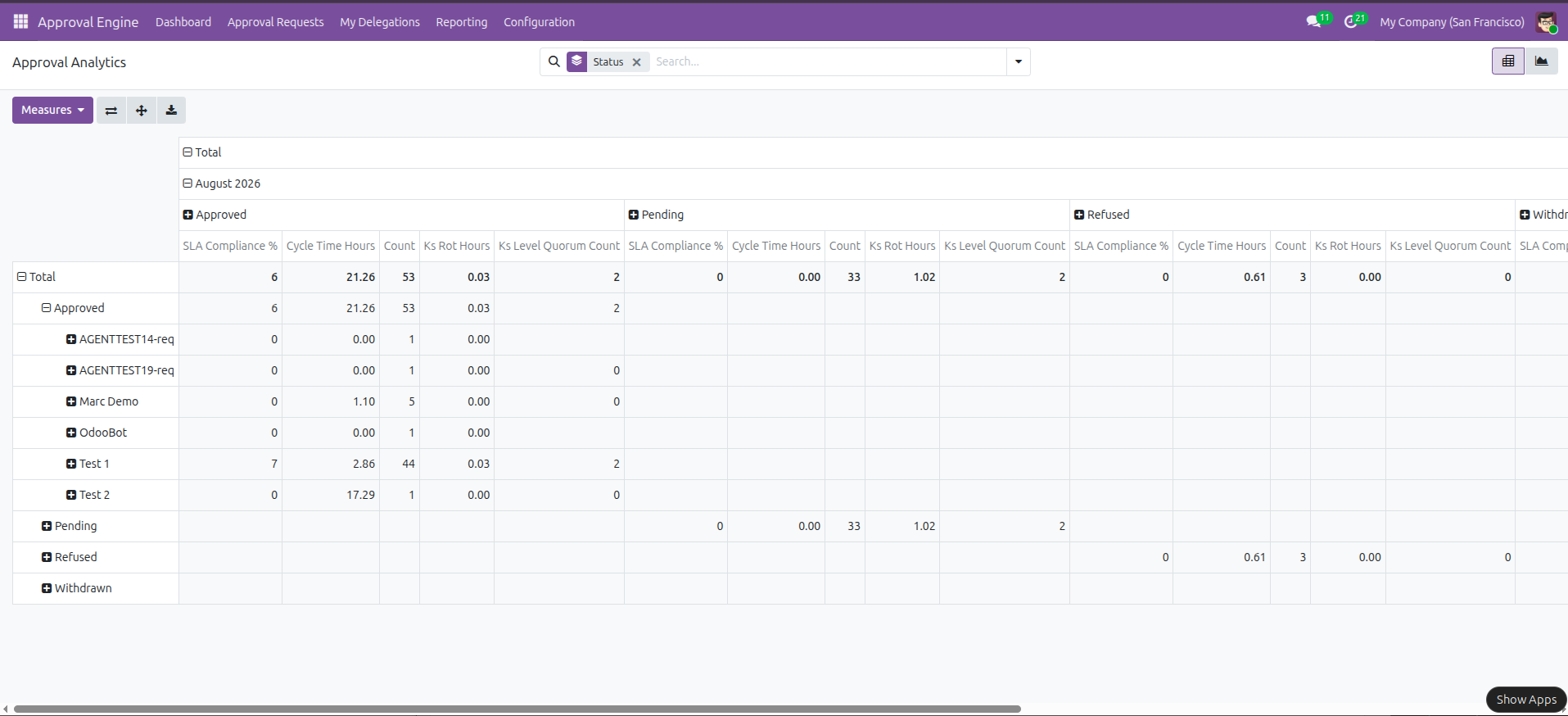
  • Average time-to-decision, by rule, document type, requester, level and month
  • Who is holding things up — pending load grouped by approver
  • Deadline performance, trending over time
  • Export the current dashboard view to a spreadsheet
Reporting and analytics
Support

Free 90 Days Support

Ksolves provides free 90 days support for any doubt, queries and bug fixing (excluding data recovery) or any type of issues related to this module. This is applicable from the date of purchase.

Note: Extensively tested on Odoo Vanilla with Ubuntu OS

90 DAYS
Onboarding

Setting Up Your First Approval Flow

Install to a live, enforced approval chain — every screen, field and option you will touch, in the order you will touch them. No developer needed for any of them.

1Install2Access3Enable model4Pick button5Applicability6Levels7Deadlines8Simulate9Day to day
Phase 1

Prepare

Install, grant access, switch on a document type.
  1. 1

    Install the module

    Apps → search ks_approval_management_engine → Install. It depends on base and mail only, so nothing else has to be installed first, on Community or Enterprise.
    Installation adds a top-level Approval Engine menu with Dashboard, Approval Requests, My Delegations, Configuration and Reporting, plus four background jobs that run every 15 minutes (SLA escalation, 50%/90% reminders, Time to Rot emails, and retention archiving).

  2. 2

    Give people access

    Settings → Users & Companies → Users. Only existing Administration/Settings users are granted access automatically on install — everyone else must be given a group explicitly, exactly like Sales or Purchase access.

    GroupCan do
    KS Approval: UserSee and act on requests they are involved in. This is what an approver needs.
    KS Approval: AdministratorEverything a User can, plus create and edit rules, and see the Diagnostics tab. Implies User.
    KS Approval: Emergency ApproverBreak-glass override. Deliberately implied by neither of the above, so configuration rights never silently grant it.
  3. 3

    Enable the document type

    Approval Engine → Configuration → Approval Enabled Models → add the model you want to gate (Sales Order, Purchase Order, Journal Entry, Transfer, or any custom model).

    This is what makes the no-code button picker and the on-record Approvals smart button appear for that document type. Without it the engine still works, but you would have to type the technical method name by hand in step 4.

Phase 2

Build the rule

Pick the button, scope it, design the chain.
  1. 4

    Choose the button to gate

    Two ways in — both end up creating the same rule:

    From the document (recommended)

    Turn on Developer Mode, open any record of that type, and pick Set Approval Rule… from the debug menu. You get a list of the form's real on-screen button labels — "Confirm", "Validate", "Post" — not Python names. Choosing one opens a pre-filled rule.

    From the rule form

    Configuration → Approval Rules → New. Set Model, then pick Gate Code from the dropdown of registered gates. Leave Company empty to apply the rule across every company, or set it to scope the rule to one.

  2. 5

    Decide when the rule applies

    Leave this whole section empty and every record needs approval. Narrow it with either or both:

    • Domain Filter — an Odoo domain evaluated against the record, e.g. only a given customer, region or product category. Empty means always.
    • Threshold Field + Threshold Operator + Threshold Amount — compare a numeric or monetary field on the record (amount_total, for instance) using >=, >, <=, < or =.
    • Auto Approve Below — matching records at or under this amount clear with no human step, but are still recorded. Use it so small values never queue up.
  3. 6

    Build the approval levels

    On the rule's Levels tab, add a line per stage. Levels run top to bottom; each must clear before the next begins. Per level you set:

    Execution ModeWhat it means
    SequentialApprovers are asked one at a time, in the order you drag them. Everyone must approve.
    Parallel — AnyEveryone is asked at once; the first approval clears the level.
    Parallel — AllEveryone is asked at once; every one of them must approve.
    Quorum (N of M)Everyone is asked at once; any Quorum Count approvals clear it. Committee voting.
    Approver SourceWho gets asked
    Explicit UsersThe people you list. Drag to reorder — order is what Sequential follows.
    Security GroupEvery member of the group you pick, resolved live, so staff changes need no rule edit.
    Requester's ManagerResolved from the HR hierarchy at run time. Needs the Employees app installed.

    Two optional switches per level: Require Attachment blocks approval until a document is attached, and Exclusive Approval stops one person clearing two levels of the same request.

  4. 7

    Add deadlines and escalation optional

    Set Sla Hours on a level to put it on a clock (0 = no deadline). Reminders go out automatically at 50% and 90% of it. When the time runs out, Escalation Behavior decides what happens:

    BehaviorEffect
    Flag instance OverdueMarks it Overdue on the dashboard. Nobody new is involved. Default.
    Notify next tier upEmails the person in Escalate To, without changing who may approve.
    Auto-delegate to backupLets Escalate To act as well as the original approvers — added, never substituted.

    For requests that go badly stale, tick Rot Enabled on the rule and set Rot Hours. Once a level has already escalated and then sits that many hours longer, the request is flagged Rotten and every current approver gets a daily urgent-action email until it is decided.

Phase 3

Go live

Dry-run, activate, and know where people work.
  1. 8

    Simulate, then activate

    Press Simulate on the rule form. It reports whether the rule would match, and exactly who would be asked at each level — without creating a request or notifying anyone. Fix anything surprising, then tick Active.

    From this point the gated button is enforced: pressing it on a matching record creates an approval request instead of running the action, and the action only runs once the chain is approved.

  2. 9

    Where everyone works day to day

    • Approval Engine → Dashboard — My Approvals, Delegated to Me, My Requests, and All Requests for admins. Approve or decline straight from a card.
    • Approval Requests — the full list, with Approve, Reject, Withdraw, Resubmit and Emergency Approval, plus the complete decision history.
    • My Delegations — hand your approvals to a colleague between two dates. You keep your own right to act throughout.
    • Reporting — Approval Analysis for cycle time and SLA compliance, Approver Bottleneck for who is holding things up.
    • The document itself — an Approvals smart button shows the pending and total count for that record.
For developers

Gating Custom Code

Steps 1–9 need no code at all. Only a custom Python method that is not an ordinary form button needs this.

Declare the gate in code

Apply the decorator in your own module. The method then appears in the Gate Code dropdown, and the rule is configured from the UI exactly as above.

from odoo.addons.ks_approval_management_engine \
    import ks_requires_approval

class MyModel(models.Model):
    _inherit = 'my.model'

    @ks_requires_approval
    def action_do_something(self):
        return super().action_do_something()

Pass code="My Label" to register it under a friendlier name. That alias, not the method name, is what the rule matches on.

Optional: richer per-record UI

Inherit the mixin to add a per-record smart button, a searchable "has pending approval" flag and an on-record gate note. The block/approve mechanism itself does not require it.

class MyModel(models.Model):
    _name = 'my.model'
    _inherit = ['my.model', 'ks.approval.gate.mixin']

Foundational methods — create, write, unlink, read, search — are on a deny-list and can never be gated, deliberately.

Requirements

The engine is intentionally lightweight — there is very little to prepare before installing it.

Odoo 19.0, Community or Enterprise Manifest depends: base, mail only Admin access to create rules Employees app only if you use "Requester's Manager" Custom code-level gating needs the module's decorator in your own module

Worth knowing before you go live

Nobody approves their own request. The requester is always excluded. If a level ends up with nobody but them, it clears automatically with a note rather than deadlocking.

An approval is single-use. It permits exactly one run of the gated action. Confirming, cancelling and confirming again needs a fresh approval.

One active rule per model, button and company. Leaving Company empty makes the rule global, so it cannot coexist with a company-specific rule on the same button.

Editing an active rule versions it. Requests already in flight keep the rules they started under; the change is logged in the rule's chatter.

About us

Why Ksolves

You know us as the makers of Dashboard Ninja. You will remember us for the Multi-Level Approval Engine. Your trusted partner in offering tailored solutions for your unique business vision.

Ecommerce Development
CMMI Level 3 Certified
Odoo Gold Partner
84.3% Client Retention Rate
Dedicated Support Team
On-Time Delivery
15+ Years of Experience
Global Clientele
Have unique requirements?

Choose Ksolves

Share your specific business requirements or challenges with us, and let us craft a custom solution that meets your needs.

Get in Touch
Good to know

Frequently Asked Questions

Changelog

Release Notes

19.0.1.0.0 Initial Release Released · 09 October 2026
  • No-code rule builder with condition and amount-threshold applicability, per company
  • Sequential, Parallel-Any, Parallel-All & Quorum (N of M) routing, combinable per rule
  • Time-boxed delegation, per-level SLA, configurable escalation & "Time to Rot"
  • Dashboard with My Approvals, Delegated to Me, My Requests & All Requests tabs
  • One-click email approve/reject, with the mandatory-reason wizard enforced identically
  • Zero-code dynamic button gating in Developer Mode, plus a one-line decorator for developers
  • Immutable decision log, break-glass emergency approval, and full reporting suite
Multi-Level Approval Engine | Multi-Level Approval Workflows | Ksolves | [email protected]

Free 120 Days Support

Get 120 days of FREE support (doubt, queries, & bug fixing) on Odoo
applications from the date of purchase. Enhance the functionality of
your business with the Ksolves Odoo experts.

pic

Get your Personalized Demo

0/50 characters
0/100 characters