pic
Many2one Peek & Edit
120 Days
Free Support
Free
Lifetime Update
Free
Installation

Many2one Peek & Edit

Many2one Peek & Edit (technical name ks_m2o_peek_edit) opens the record behind a Many2one field in a non-modal side panel, so users can preview, edit, create and follow related records without leaving, or losing any unsaved work in, the document they are on.


Supported Versions

All the compatible versions

10.00 € 10.0 EUR

10.00 €
Installation: Free
Support Period for 4 Months: Free

Live Demo
120 Days
Free Support
Free
Lifetime Update
Free
Installation
Many2one Peek & Edit iconKsolves · Odoo 19.0

Many2one Peek & Edit

Open the related record beside your form.
Never lose your place again.

Click a Customer, Product or Salesperson and it slides into a side panel next to the document you are working on. Edit it, save it, and watch the document update, without leaving the page and without losing a single unsaved keystroke.

✓Odoo 19.0✓Community & Enterprise✓Odoo.sh & on premise✓Respects access rights
4 open modes
side panel, pop-up, new tab or Odoo default
0 lost edits
unsaved work on your document is never overwritten
1 click back
breadcrumb, Alt+Left and an “Opened from” link
odoo · Many2one Peek & Edit
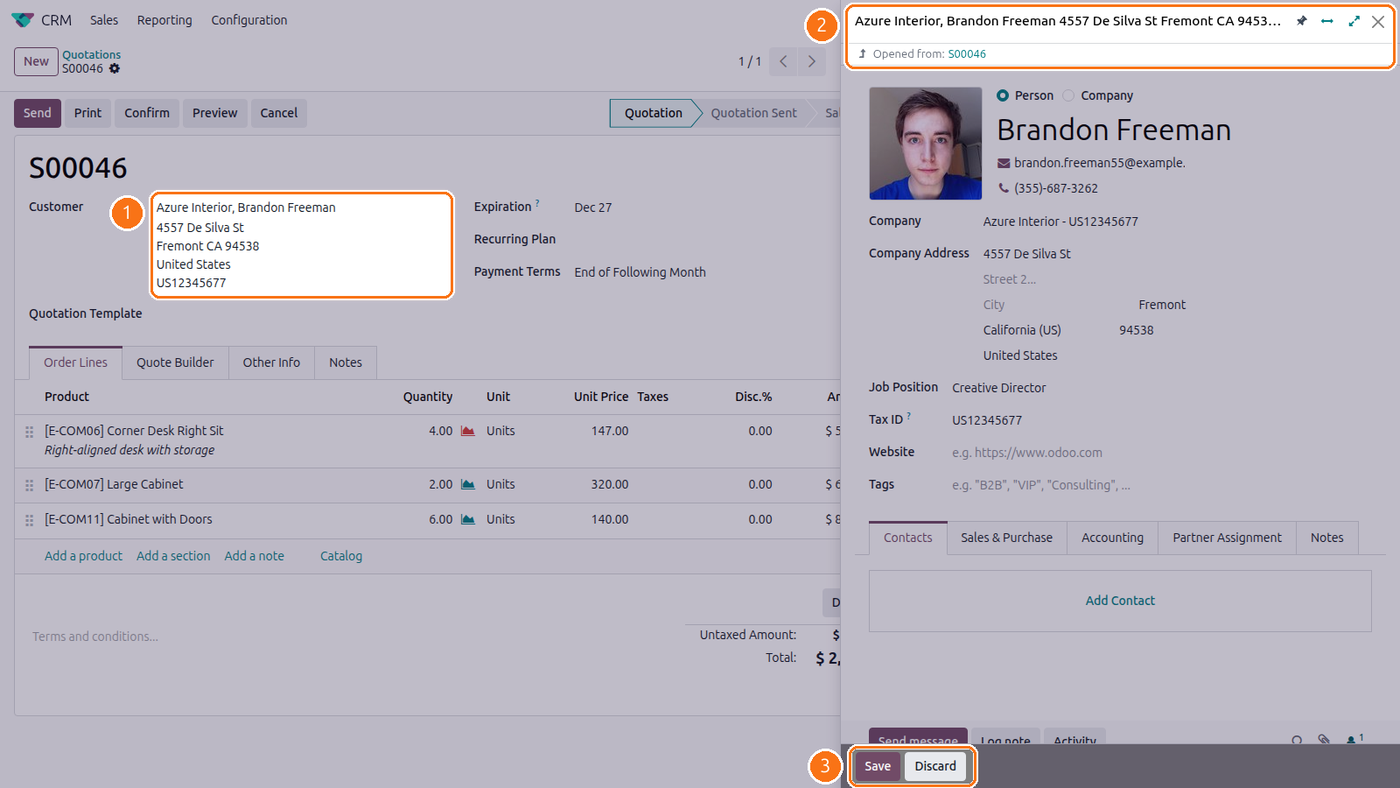
Quotation on the left, its customer open in the side panel on the right
1Your quotation stays open, with everything you typed still there.
2The customer opens in the side panel, with an “Opened from” link back to the document.
3Save and Discard in the panel affect only the record in the panel.
●Talk to an expert

Start your evaluation

Set up a demo and evaluate with guidance. Choose any option below.

Scan or click
Email
Email QR code
Scan to chat
WhatsApp
WhatsApp QR code
+91 85274 71031
Live session
Book a demo

See the side panel on your own workflows and get answers from the team that built it.

●Why it matters

Fix the customer, keep the quotation

In standard Odoo the internal link of a Many2one field leaves your form or opens a blocking pop-up. Many2one Peek & Edit keeps both records on screen.

Standard Odoo
—Clicking the arrow navigates away from the form you are editing
—Or a modal pop-up covers the page until you close it
—One record at a time: following order → customer → company means losing your path
—After editing the related record, the document can show stale names
With Many2one Peek & Edit
✓The related record opens in a non-modal side panel, the document stays usable
✓A breadcrumb stacks records inside the panel, each one keeps its unsaved changes
✓After a save the document refreshes names and related fields, and shows what changed
✓Your own unsaved input on the document is never overwritten
●Feature tour

See it on a real Odoo 19 database

Every screenshot below is taken from a running instance. Numbers on the images match the notes beside them.

odoo · Many2one Peek & Edit
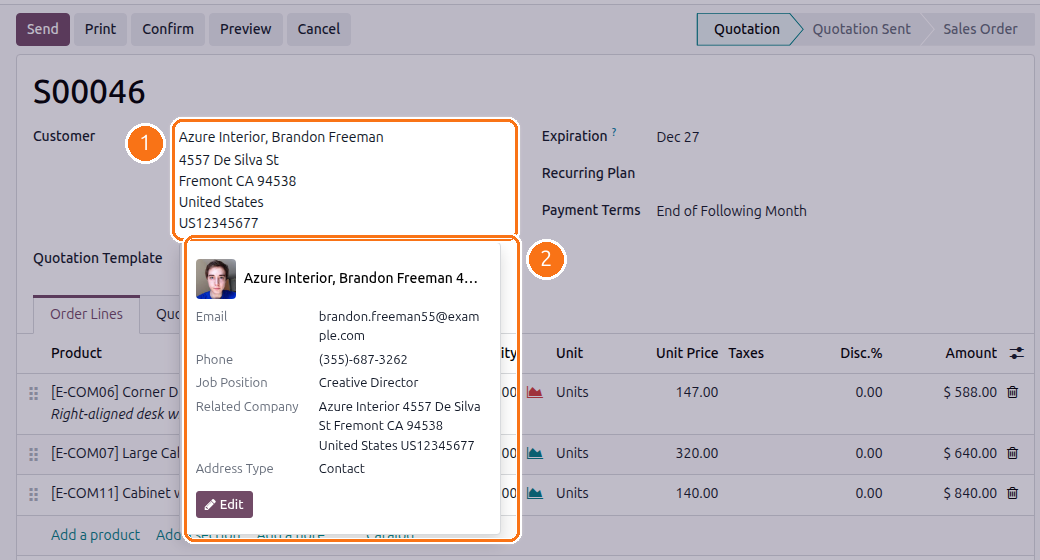
Peek card showing a contact's email, phone and company
01  ·  Peek card

Preview a record without opening it

Rest the mouse on a Many2one value for about half a second and a card shows the record’s picture, name and up to six key fields. Keyboard users get it by tabbing to a read-only link.

1Hover the Customer field of the quotation.
2The card lists email, phone, job position and more; Edit opens the record in the side panel.
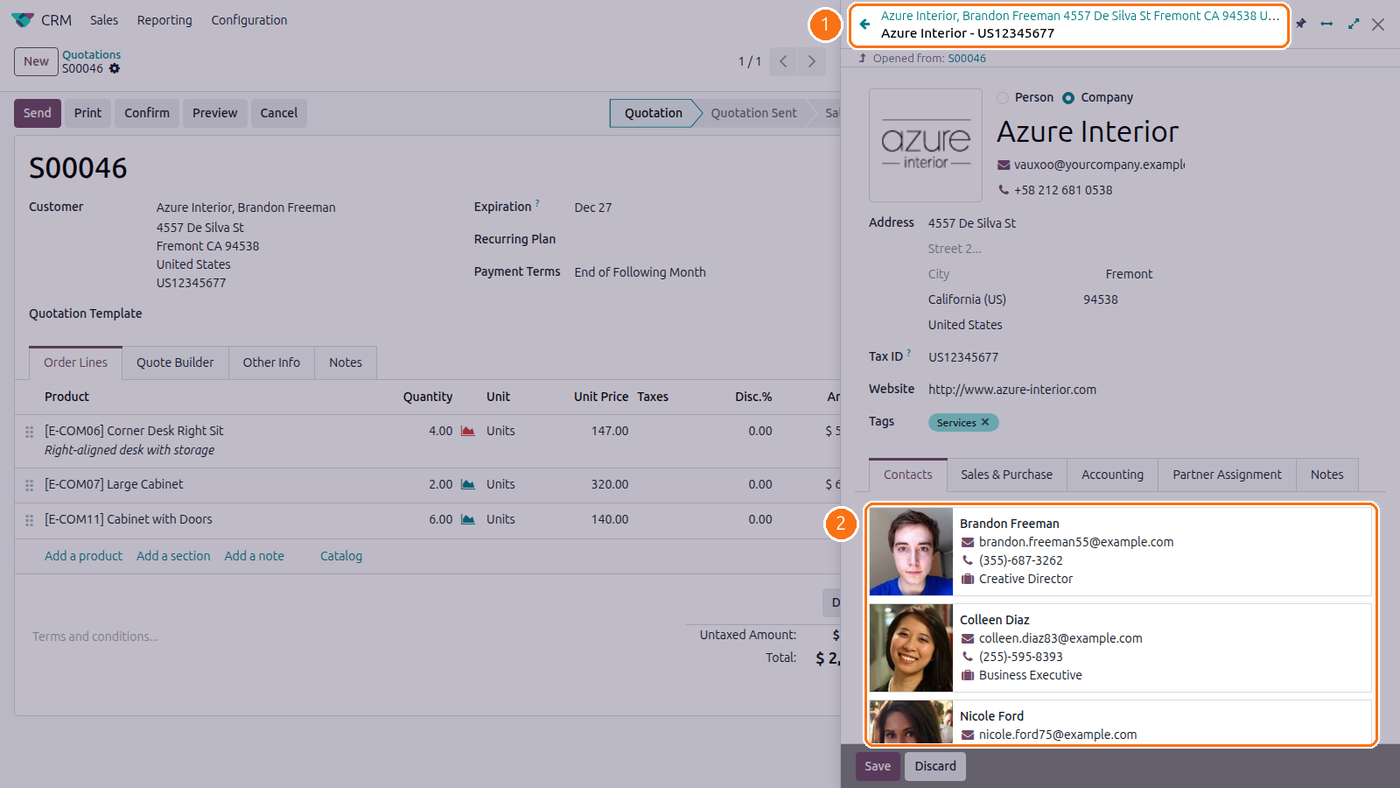
02  ·  Breadcrumb stack

Follow a chain of records and step back

Inside the panel, Many2one fields, tags and table rows open on top of the current record. Go from the quotation’s customer to the customer’s company and come back with one click or Alt+Left.

1Back button and breadcrumb above the title: contact → company.
2Contacts, tags and table rows of the company open in the panel too.
odoo · Many2one Peek & Edit
Side panel showing a company with a breadcrumb back to the contact
odoo · Many2one Peek & Edit
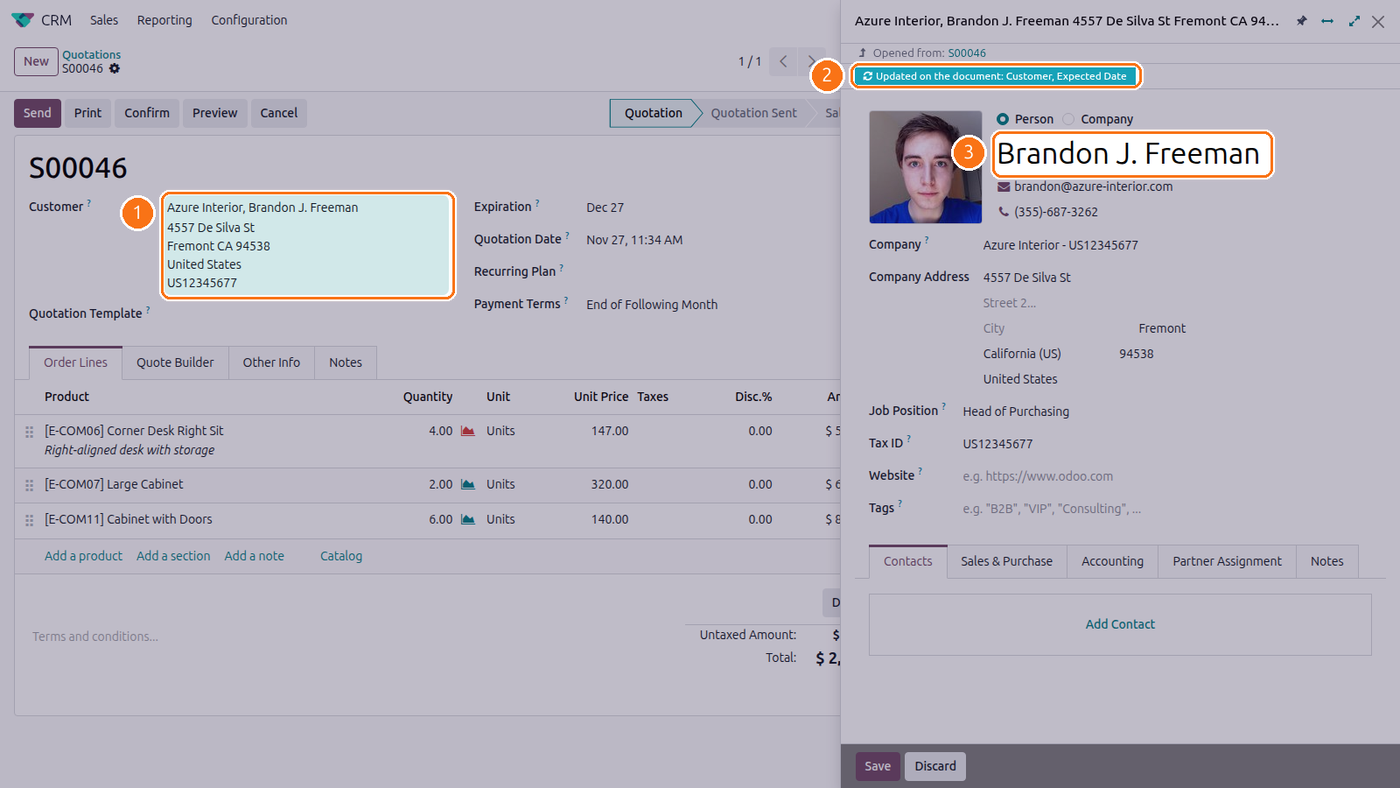
Customer renamed in the panel, the quotation's Customer field flashes with the new name
03  ·  Live document sync

Save in the panel, see the document update

After a save, the document behind the panel refreshes the Many2one name, related fields and read-only values. Updated fields flash, and the panel lists them. The document is not marked as modified, and anything you typed on it is kept.

1The quotation’s Customer field shows the new name straight away and flashes.
2The panel lists what changed: “Updated on the document: Customer”.
3The record that was renamed and saved in the panel.
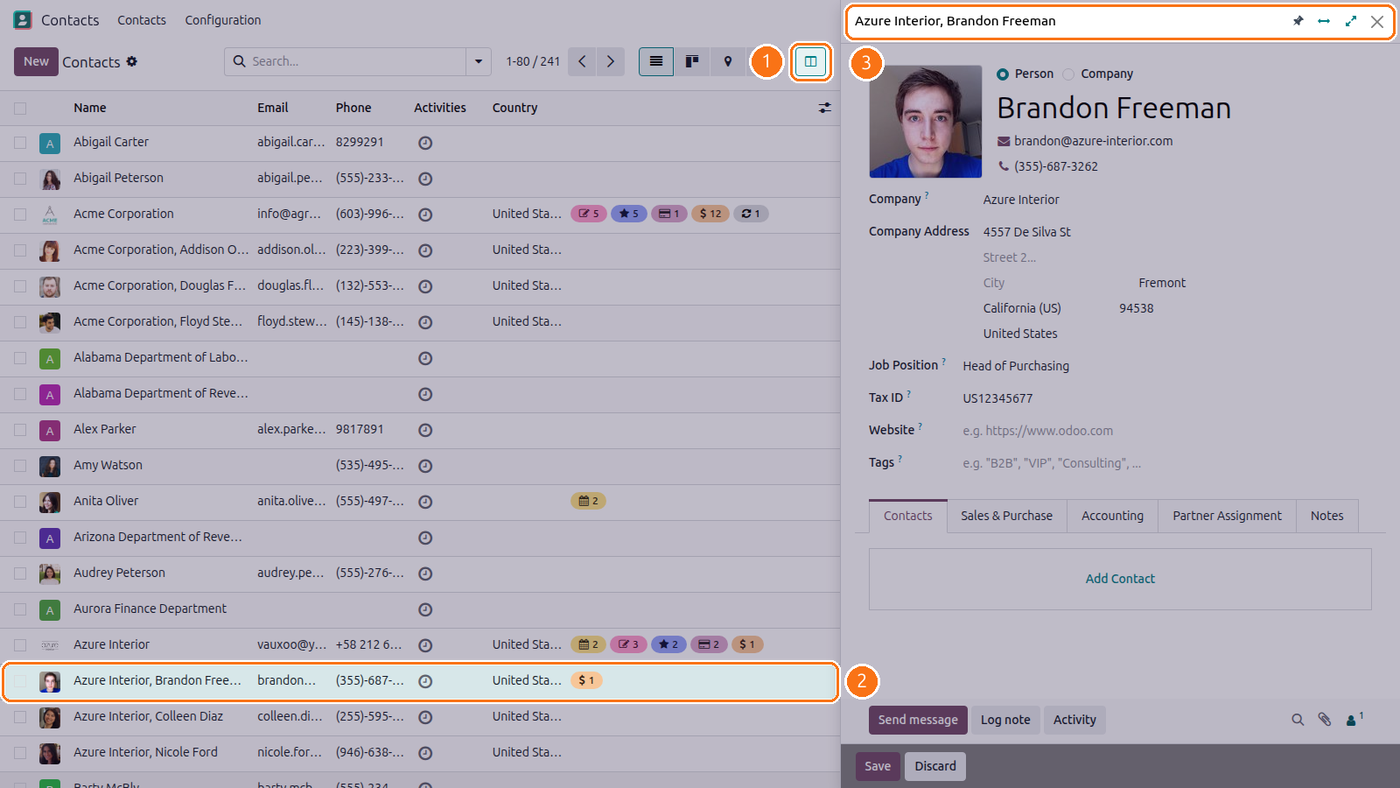
04  ·  Split view for lists

Work through a list one record at a time

Turn on split view with one button. Click a row and the record opens next to the list instead of covering it; the current row stays highlighted. Odoo remembers the choice per user and per list.

1The split-view button in the list control panel.
2The row that is open in the panel is highlighted.
3The panel docks beside the list, not over it.
odoo · Many2one Peek & Edit
Contacts list with split view on and a contact open beside it
odoo · Many2one Peek & Edit
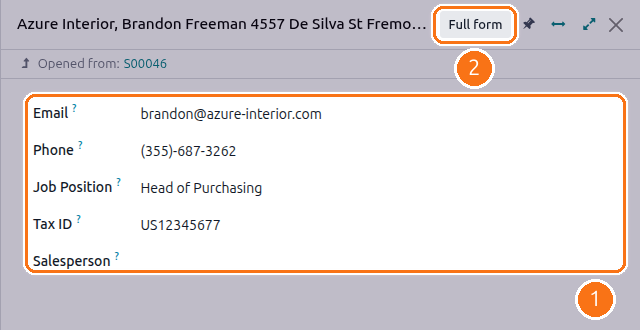
Quick Edit layout showing email, phone, job position, tax ID and salesperson
05  ·  Quick Edit

A short form with only the fields you fix most

Administrators pick a few fields per model, for example a contact’s email and phone. The panel then opens that short form; the full form is one click away. New records always use the full form so no required field is missed.

1Only the fields chosen in Settings → Quick Edit layouts.
2Full form switches to every field, asking first about unsaved changes.
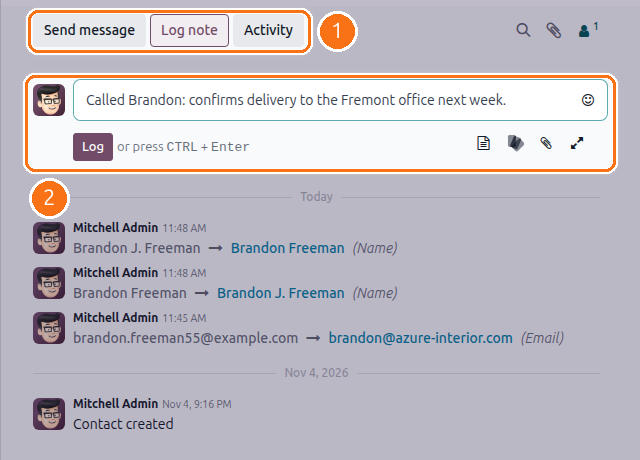
06  ·  Chatter in the panel

Log a note on the customer while writing the quote

The related record’s chatter sits at the bottom of the panel: send a message, log a note, schedule or complete activities, see followers and attachments. Field changes made in the panel are tracked as usual.

1Send message, Log note and Activity, right in the panel.
2A note being logged, above the record’s tracked history.
odoo · Many2one Peek & Edit
Log note composer and tracked changes in the side panel chatter
odoo · Many2one Peek & Edit
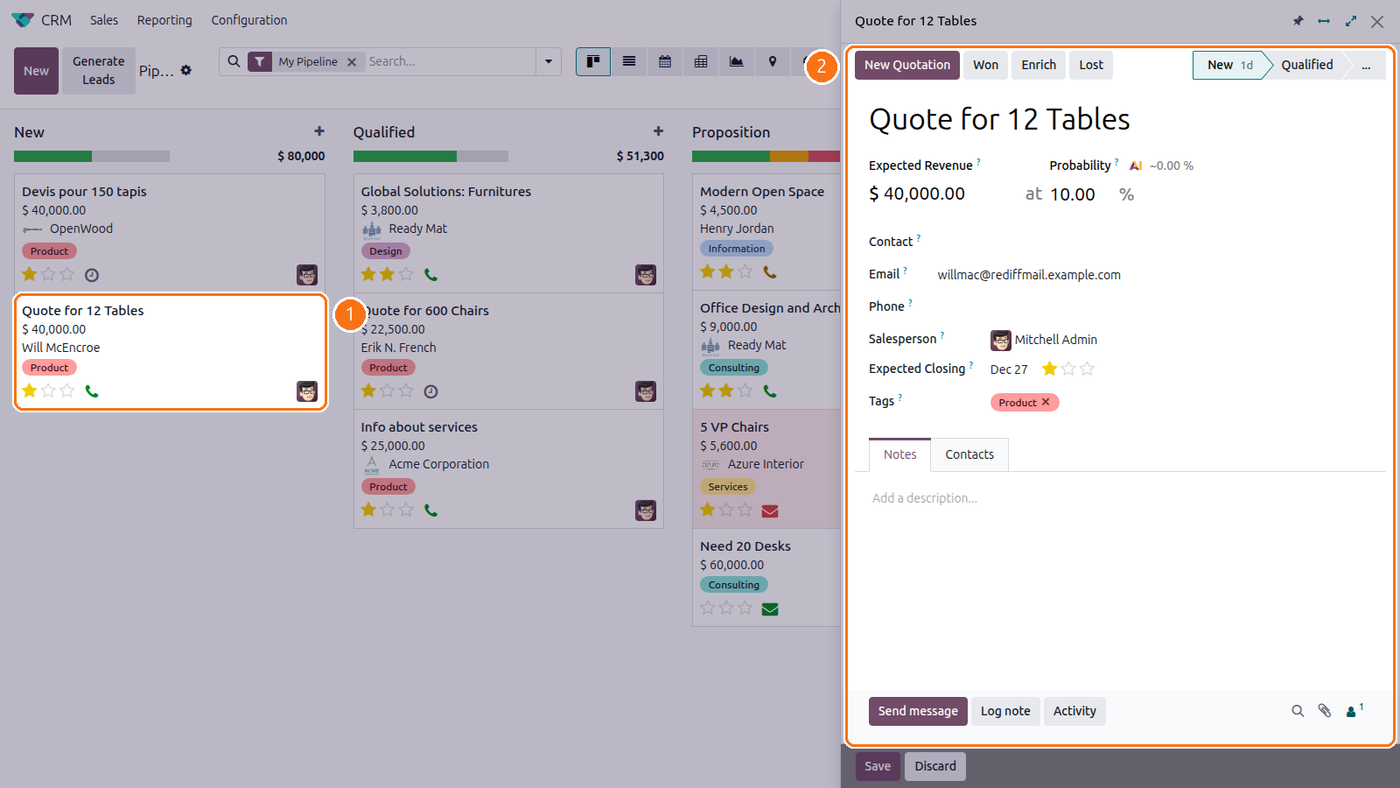
CRM pipeline with an opportunity open in the side panel
07  ·  Kanban and calendar

Cards and events open in the panel too

With the option on, clicking a kanban card opens the record in the side panel and the kanban stays in place; calendar events open from their Edit button. Cards and events refresh after a save.

1The opportunity card that was clicked.
2Its full form, chatter included, in the side panel.
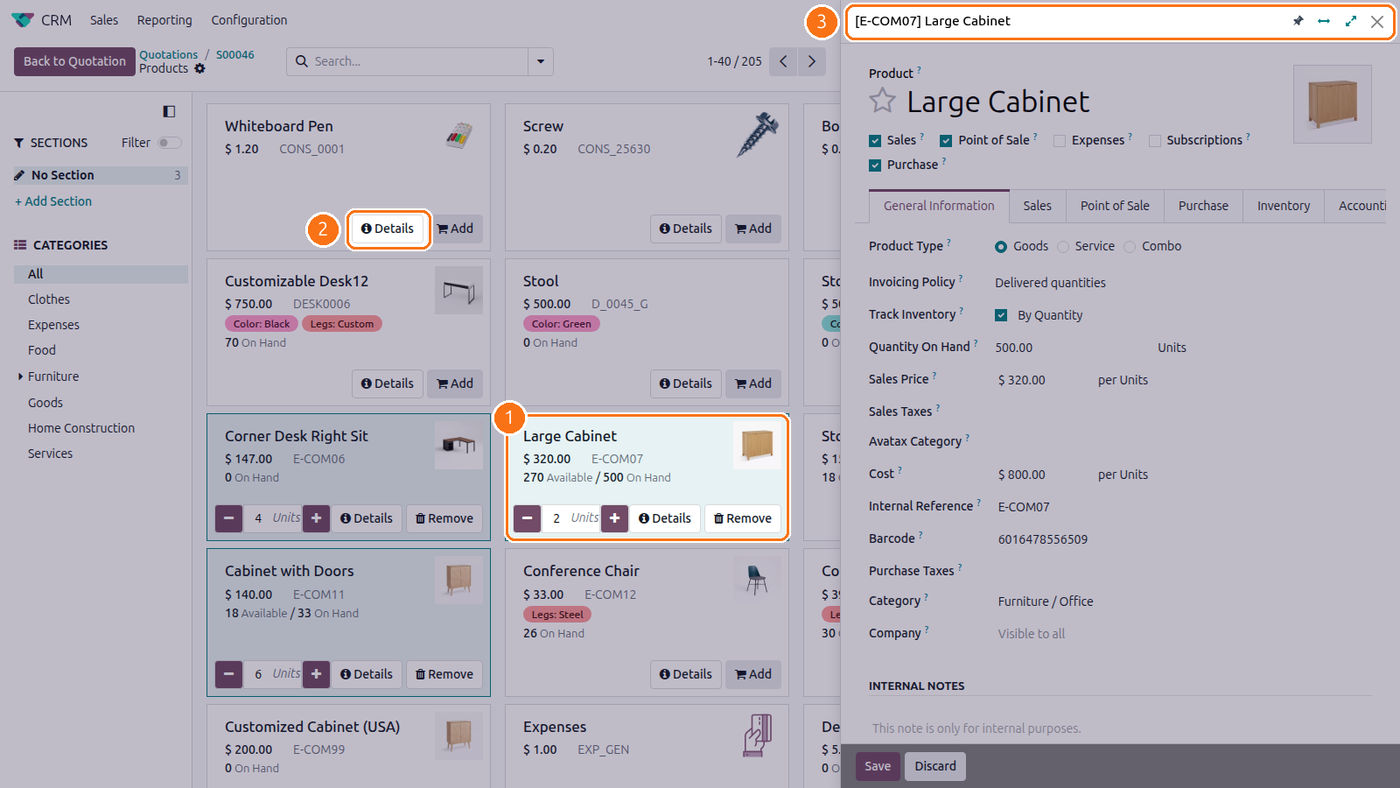
08  ·  Product catalog

A Details button on every catalog card

An optional add-on, installed from Settings, adds a Details button to every product card of the product catalog (sales, purchase and more). It opens the product with your configured mode, and a save refreshes the card.

1A product already on the quotation: Details sits next to Remove.
2Products not yet added have it too, next to Add.
3The product opens in the side panel.
odoo · Many2one Peek & Edit
Product catalog with Details buttons and a product open in the side panel
odoo · Many2one Peek & Edit
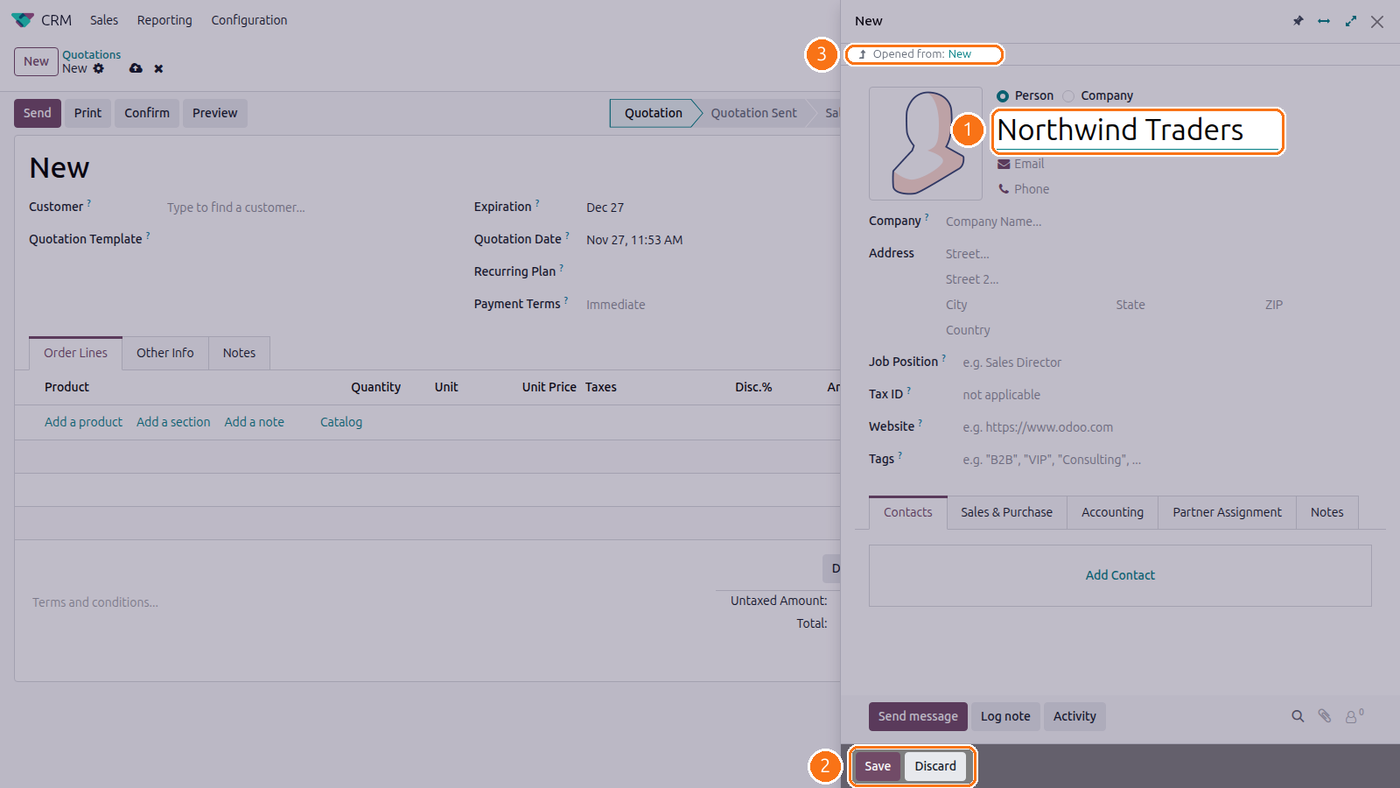
New contact Northwind Traders being created in the side panel from a new quotation
09  ·  Create and edit

Create the missing record without leaving

Type a name that does not exist yet and choose Create and edit…. The panel opens a new record with the name filled in; on save it is selected in the field and onchanges run as usual. Discard creates nothing.

1The typed name is already filled in.
2Save selects the new contact on the quotation; Discard closes the panel and creates nothing.
3“Opened from” names the document the panel belongs to.
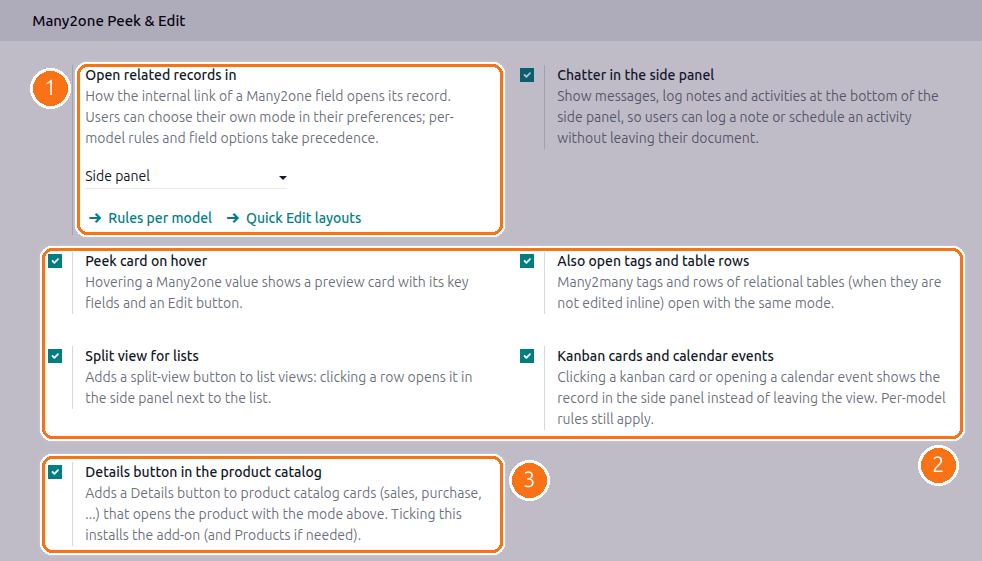
10  ·  Settings

Off by default, switched on per company

Installing the app changes nothing until an administrator turns options on (the chatter option is on by default, it only shows once the panel is used). Users can still pick their own open mode and panel side in My Preferences.

1Company open mode, with Rules per model and Quick Edit layouts.
2Peek card, tags and rows, split view, kanban and calendar switches.
3Product catalog Details button: ticking it installs the add-on.
odoo · Many2one Peek & Edit
Many2one Peek & Edit block in General Settings
●Everything included

Built for daily work, safe by design

◫
Real form in the panel
The record’s own form view: fields, tabs, smart buttons and header buttons all work.
⇄
Resize, pin and dock
Drag the edge from 320 to 1600 px, pin the panel while you move around, dock it left or right. Width and side are saved per user.
⚠
Unsaved-changes guard
Closing the panel or opening another record with unsaved changes asks: Save, Discard or Cancel.
⚑
Conflict warning
If you typed in an editable copied field, your value is kept and the panel warns that the parent value differs.
☰
Tags and table rows
Many2many tags and rows of one2many tables open in the panel. New or unsaved rows keep the standard pop-up.
🔒
Read-only aware
Users without write access, and rows of read-only tables, get the panel without a Save button.
↻
Archive instead of delete
Model rules and Quick Edit layouts have an Active toggle and an Archived filter.
⚙
Per field control
widget="m2o_peek_edit" or options such as peek_mode, peek_card, peek_fields and peek_quick_fields.
✓
Respects no_open
Fields set to no_open get no link, no panel and no peek card, exactly like core.
●Open modes

Four ways to open, one clear rule

Choose how links open for the company, then refine per user, per model or per field. The first match wins.

Side panel
Non-modal panel beside the document.
Pop-up window
Odoo’s dialog, synced after save.
New browser tab
The record in a new tab.
Odoo default
Standard behaviour, the install default.
Which mode wins
1Field option
options="{'peek_mode': 'dialog'}" in a view
2Widget
widget="m2o_peek_edit" always uses the panel
3Rule per model
e.g. Product → Pop-up window, per company or shared
4User preference
My Preferences → Open related records in
5Company setting
Settings → Open related records in

Ctrl/Cmd+click and middle-click always open a new tab. Inside pop-up windows standard Odoo behaviour is kept, so nothing opens hidden behind a dialog.

●Keyboard

Hands stay on the keyboard

Alt + Shift + O
Open the focused Many2one field in the side panel (inside the panel it is added to the breadcrumb).
Alt + ←  /  Alt + →
Back and forward through the panel breadcrumb; focus stays in the panel so you can repeat.
Esc
Back one record, then close the panel. Focus returns to the field that opened it.
Ctrl + click
Always open the record in a new browser tab (Cmd+click on Mac).
●Get started

Up and running in four steps

1
Install
Install the module on Odoo 19.0. It depends only on web, mail (Discuss) and base_setup.
2
Choose a mode
Settings → General Settings → Many2one Peek & Edit → Open related records in: Side panel.
3
Switch on extras
Peek card, tags and rows, split view, kanban and calendar, product catalog Details.
4
Reload and click
Reload the page, hover any Many2one field and click its arrow.
Works where you run Odoo
Odoo 19.0 Community and Enterprise, on Odoo.sh or on premise. No Enterprise, IAP or paid module dependency.
Security first
No sudo(). Access rights, record rules, field groups and multi-company rules are respected in the panel and the peek card.
Stays out of the way
Every option is off after install except the chatter in the panel. Per-user preferences are stored in the database, not in the browser.
●FAQ

Quick answers

Q.Does installing it change how Odoo behaves?
No. The company mode defaults to Odoo default and the optional features are off, so nothing changes until an administrator switches them on.
Q.Will a save in the panel overwrite what I typed on my document?
No. Only values you have not changed are refreshed. If you typed in an editable field that the save would also change, your value is kept and the panel shows a warning.
Q.Can users without access see more than they should?
No. The panel and the peek card read records with the user’s own rights. Records the user may not read show a clear message instead.
Q.Does it work on order lines?
Yes. Many2one fields on lines, such as the product of a sales order line, open in the panel and an unsaved line edit is kept.
Q.Can I keep the panel open while browsing records?
Yes. Pin it with the pin button; it then stays open across records, menus and the pager. Closing the panel or reloading the page ends the pin.
Q.Which Odoo versions are supported?
Odoo 19.0, Community and Enterprise.
●Release notes

Version 19.0.1.0.0 · Initial release

What ships in this version
✓Side panel with breadcrumb stack, pin, left or right docking and resizable width
✓Peek card on hover, Quick Edit layouts and chatter in the panel
✓Live document sync with change highlights and conflict warning
✓Split view for lists, kanban cards and calendar events in the panel
✓Optional product catalog Details button, installed from Settings
●Support

Free 90 days support

Ksolves provides free 90 days support for any doubt, queries and bug fixing (excluding data recovery) or any type of issues related to this module. This is applicable from the date of purchase.

Note: extensively tested on Odoo Vanilla with Ubuntu OS.

KsolvesOdoo Gold PartnerCMMI Level 3Odoo

Ksolves is an Odoo Gold Partner and CMMI Level 3 certified company. Talk to us about customisation, integration, migration and support: [email protected]

Free 120 Days Support

Get 120 days of FREE support (doubt, queries, & bug fixing) on Odoo
applications from the date of purchase. Enhance the functionality of
your business with the Ksolves Odoo experts.

pic

Get your Personalized Demo

0/50 characters
0/100 characters